
• Home
  • Tips, Guides, & Troubleshooting
  • Categories
    • Software & Apps
    • Laptop Computers
    • Desktop Computers
    • Mobile Devices
    • Computer Monitors
    • Graphic Cards
    • Consoles
    • WiFi Devices
  • Product Reviews
  • Download Drivers
    • HP Drivers
    • Dell Drivers
    • Asus Drivers
    • Toshiba Drivers
Facebook Twitter Instagram
Trending
  • Linksys AE6000 WiFi Mini USB Adapter Review
  • How To Fix VCRUNTIME140.dll and MSVCP140.dll missing error in Windows 10
  • Netgear Nighthawk AC1900 WiFi USB Adapter Review
  • How To Fix Microsoft Excel Has Stopped Working Error
  • How To Increase Maximum Upload Limit & PHP Memory in WordPress
  • How To Fix Fonts Are Incomplete Error in Adobe InDesign
  • How To Connect To WiFi With An Android Phone
  • How To Setup Your TP-Link N300 TL-WA855RE WiFi Extender
Facebook Twitter Instagram
New Computer Inquiry
  • Home
  • Tips, Guides, & Troubleshooting
  • Categories
    • Software & Apps
    • Laptop Computers
    • Desktop Computers
    • Mobile Devices
    • Computer Monitors
    • Graphic Cards
    • Consoles
    • WiFi Devices
  • Product Reviews
  • Download Drivers
    • HP Drivers
    • Dell Drivers
    • Asus Drivers
    • Toshiba Drivers
New Computer Inquiry
You are at:Home»Tips & Guides»How To Setup Your NETGEAR Nighthawk X4S AC2600 Smart WiFi Router
Tips & Guides

How To Setup Your NETGEAR Nighthawk X4S AC2600 Smart WiFi Router

AndyBy AndyFebruary 4, 2018No Comments3 Mins Read
How To Setup Your NETGEAR Nighthawk X4S AC2600 Smart WiFi Router
  • Share
  • Tweet
  • LinkedIn
  • Email

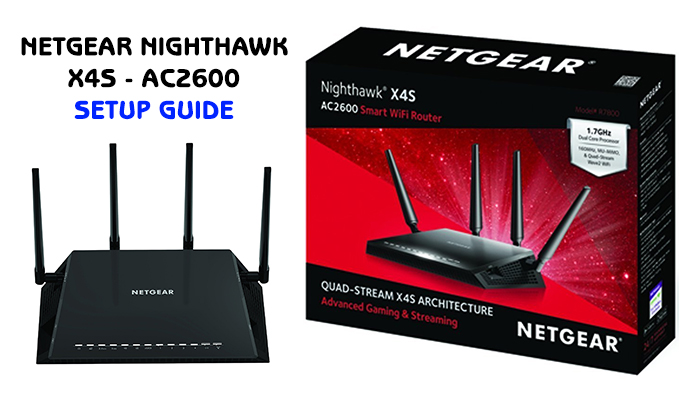
The Nighthawk X4S AC2600 is the fastest NETGEAR Dual Band Smart Router today. Packed with a ton of powerful features such as Quad Stream Wave2 WiFi, Multi-User MIMO, X4 Architecture, USB 3.0/eSATA ports for external storage, plus more. The X4S router is the perfect solution for lag free gaming and super fast video streaming in your home or office.

In our setup guide, we show you how to install and get your X4S (AC2600) smart router operational.

Setting Up and Installing Your X4S AC2600 Router:

  1. Unbox all of the accessories which includes the router, power adapter, Ethernet cable, four antennas, and the user manual.

    If you have an existing router connected, disconnect it (remove Ethernet cable and power cord) and write down the existing WiFi SSID name and Password. Keep the existing Ethernet cord connected to the modem.

  2. On the AC2600 router, remove the antenna protectors. Observe that each antenna port has a number. Carefully install each antenna one by one on the specified numbered port.
  3. Now that your antennas are connected, plug the Ethernet cable from your modem into the yellow Ethernet port in your AC2600 router.

    If you have a network switch or other wired devices in your home or office network, connect them now via Ethernet cable right into the AC2600 router.

  4. Plugin the power cable and press the ON button (located in the back of the router).
  5. After are the lights power on, it’s time to setup the router using an internet browser either on a desktop/laptop computer or on your mobile device via WiFi.

    The WiFi SSID username and password is located as a sticker right on top of your AC2600 router. Use those credentials to establish a connection. If you would like to use your computer instead, open your web browser (Firefox/Chrome/Safari), and type in http://192.168.1.1 and press enter.

  6. Whether your using your mobile device or computer at this moment, connect to the AC2600 routers administrator panel through the web browser and follow the setup wizard.
  7. You will have the option to change the existing routers WiFi username and password. If you want to keep your NETGEAR’s login credentials as is, you can skip that page and continue in the wizard.
  8. An option to download NETGEAR’s desktop software will be presented to you. This is optional and not needed to successfully connect to the internet.
  9. The setup will allow you to create a password for the administrator panel (where you can setup port forwarding, check the status of your internet connection, update the firewall, etc.) Default Username will be admin. Password is whatever you create.
  10. The wizard will also ask you to download the latest firmware update, select yes.
  11. Final step is to register your product online. This is recommended so that you can receive updates and firmware notifications. Keeping your router updated to the latest firmware is very important.
  12. Your setup is now complete. Now you can stream Netflix, do online gaming, and browse Netflix all at the same time without any latency issues. Enjoy your new or upgraded WiFi experience.


AC2600 Router Netgear Nighthawk Router WiFi Router X4S Router
Share. Facebook Twitter Pinterest LinkedIn Tumblr Email

Related Posts

How To Fix VCRUNTIME140.dll and MSVCP140.dll missing error in Windows 10

How To Fix Microsoft Excel Has Stopped Working Error

How To Increase Maximum Upload Limit & PHP Memory in WordPress

Leave A Reply Cancel Reply

  • Recent Posts
  • Top Reviews
9.0
December 25, 2021

Linksys AE6000 WiFi Mini USB Adapter Review

December 21, 2021

How To Fix VCRUNTIME140.dll and MSVCP140.dll missing error in Windows 10

8.5
December 21, 2021

Netgear Nighthawk AC1900 WiFi USB Adapter Review

February 5, 2021

How To Fix Microsoft Excel Has Stopped Working Error

9.9
September 18, 2014

HP Envy 24 24-Inch Screen LED-Lit Monitor With Beats Audio Review

9.9
September 18, 2014

Samsung Galaxy Tab 4 Review

9.9
December 25, 2014

CybertronPC Hellion GM1213B Desktop Review

9.8
September 16, 2014

Dell Inspiron 17R Touchscreen Gaming Laptop 2014 Edition PC Review

9.0
December 25, 2021

Linksys AE6000 WiFi Mini USB Adapter Review

December 21, 2021

How To Fix VCRUNTIME140.dll and MSVCP140.dll missing error in Windows 10

8.5
December 21, 2021

Netgear Nighthawk AC1900 WiFi USB Adapter Review

February 5, 2021

How To Fix Microsoft Excel Has Stopped Working Error

About

New Computer Inquiry was created to provide great reviews and tips that are computer or technology related. We value providing quality information that people can learn and benefit from.

Our staff are all computer experts with professional experience when it comes to Mac and PC based computers, as well as smart phones and video game consoles. Thank you for visiting our website and we look forward to serving you the best content!

Popular Posts
November 23, 2016

How To Setup Your Toyia MSRM US302 300Mbps Wi-Fi Range Extender

July 3, 2017

How To Setup Your NETGEAR Nighthawk AC1750 Smart Dual Band WiFi Router

February 9, 2015

Attaching PDF To Outlook Gets Corrupted Solution

Recent Posts
9.0
December 25, 2021

Linksys AE6000 WiFi Mini USB Adapter Review

December 21, 2021

How To Fix VCRUNTIME140.dll and MSVCP140.dll missing error in Windows 10

8.5
December 21, 2021

Netgear Nighthawk AC1900 WiFi USB Adapter Review

Copyright © 2024 New Computer Inquiry

Type above and press Enter to search. Press Esc to cancel.