


Their are various methods for sending large files over the internet to another person. When your dealing a large group of photos, videos, music tracks, or PDF documents that exceed the email limit, you need something that is fast and easy for both you and the person you are sending to.
Below are a few popular methods used today for transferring over large files over the internet to another person by email. You have the option of using just one method or all of them. All services provided below are free.
Send Large Files with Google Drive
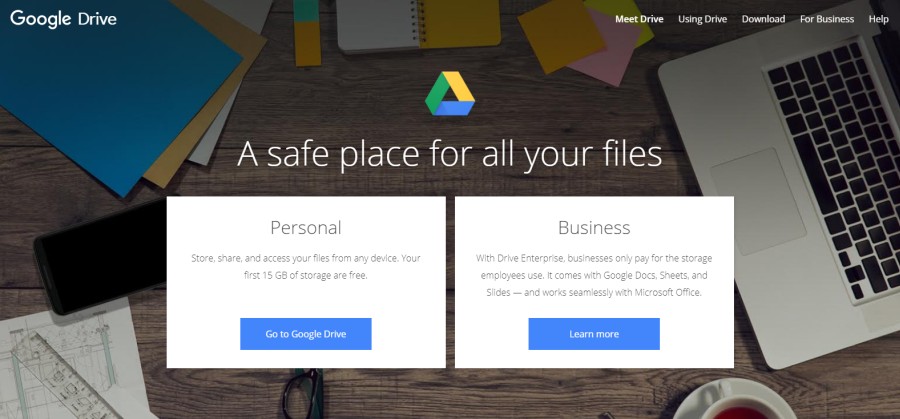
For users who have a gmail account, Google has made it very easy to send or share files with people online. This is made possible with a service they provide called Google Drive.
Google Drive is an online cloud storage platform where you are given the ability to store upto 15 GB of files for free. You can create folders directly on the platform to organize your data.
How To Use Google Drive
With Google Drive, you can share any folder or file by creating a shareable link. With this link, you can share it via email to any person.
- Sign into Google Drive with your Gmail Account.
- Desktop Users: At the top left of your screen, click on the + New button
- You have the option to: Create a Folder, Upload a Folder, or Upload a File.
- Choose Upload a File, select a video, audio track, document, or zip file to upload.
- After your file has been uploaded, right-click it and select Share
- Enter the email address of the person who you will be sending files too.
- In the pencil icon, select if you want the person to edit, comment, or view the file.
- When done, click on Send
You have now successfully transferred any large file to a person by email. If you want share the document with more people, just go back to that file on your Google Drive, right-click it and select Share. You can either add more email addresses to send to people or create a link by clicking on “Get shareable link”. Copy that link and paste it into any email. Once that link is clicked on, that person will be able to open or download it.
Send Large Files with Drop Box
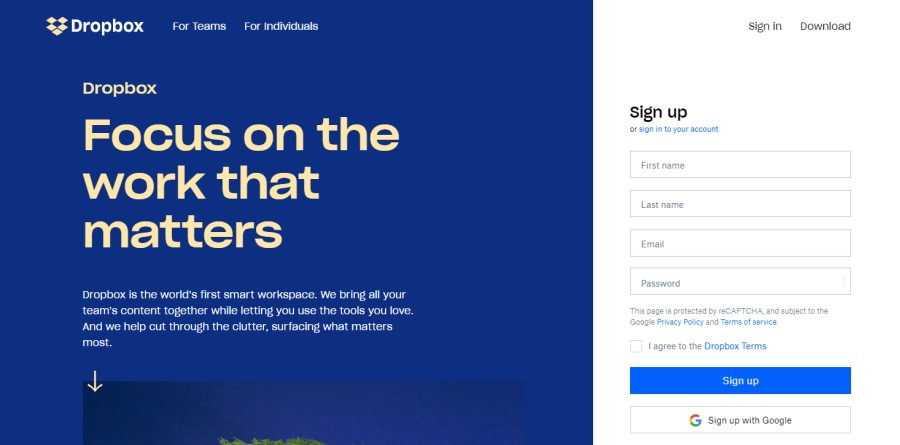
Like Google Drive, Drop Box is a online cloud storage service that allows you to share large files over the internet. You can upload any type of file and create folders to organize and your data.
The free version of Drop Box gives you a storage limit of 2.5 GB. You can get more by upgrading your account to another individual plan or business plan where you can get upto 3 TB of storage.
How to Use Drop Box
- For starters, sign-up for a free Drop Box account.
- Desktop view: Once logged in, on the right side of the screen is a menu. You have the option to Upload files, Upload a folder, or create a New folder to upload files into.
- Select Upload files, choose the file you want to upload, then click on Open.
- Mouse over the file you want to send, and click on Share.
- Enter the email address of the person, then click on the Share button.
- Alternatively, you have the option to just Create a link. With that link you can copy and paste it into the email you are sending.
Drop Box makes it absolutely easy to share and organize your data online. You can consider Drop Box as a cloud server where you can optionally sync files on your computer directly to Drop Box. If you work in an office environment, this is perfect for sharing files between co-workers instantly.
Send Large Files with WeTransfer
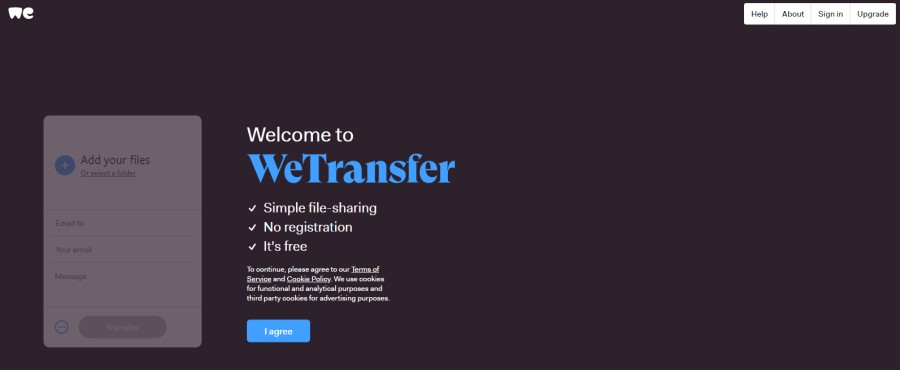
WeTransfer is one of the most popular file sharing platforms online. WeTransfer does not have all the bells and whistles of Google Drive and Drop Box, but is straight forward, quick, and easy to use. Their is no sign-up required.
Transfer upto 2 GB worth of data to anyone with an email address. WeTransfer is great for artist looking to send their music or architects if have a large amount plans and documents that need to send to a client quickly.
How to Use WeTransfer
- Visit WeTransfer, then click to Agree to their terms.
- Click “Add your files” or drag and drop your files directly into that field.
- Enter the email address of the person you are sending to.
- Enter your email address. You will receive confirmation when user has downloaded your files
- Enter any message pertaining to the files you are transferring.
- Click on Transfer to send your files by email.
- Alternatively, you can click on the blue outlined circle with the 3 dots to create a shareable link.
WeTransfer is the platform for those looking to quickly send data over the internet quickly without having to create an account or log in. Upload your files, fill out some info, and you are done.
Conclusion
Sending large files over the internet by email is very easy and has become the standard. Long lost are the days of having to send bulk emails to people or having to burn data onto a flash drive or CD-ROM. You can simply upload your data and email it to anyone around the world, where they will be able to access it instantly.