

Why does Windows ask me for Administrator Permission?
First you may ask yourself, why the hell does this pop up when you are already setup as the administrator on your computer? That’s a very good question considering you need to be able to access certain files or add and modify a file somewhere in your Program Files folder or Windows directory.
The reason this exists is actually for your own protection. Couldn’t this security feature be optional upon starting windows for the first time? That would have been a better solution.
Back in the day when Microsoft launched Windows 95, hackers found ways to compromise data and access certain system files through open ports or infected shareware software. Havoc on your computer would be happening without the users knowledge. Attacks or infections would cause file names to be changed, hidden files to be added, and directories to be created on your computer.
From Windows 95 up till Windows XP it has been a serious problem. Microsoft has look to resolved this problem with the introduction of Windows Vista and has kept this feature to the current operating system, Windows 8.1.
Overall attacks and corruption to new and existing computer files has been reduced but not completely eliminated. For users who are not computer savvy, keeping these security options on is a must. For those who are an experienced Windows user and are familiar with protections, then this guide will be for you.
Disabling the Ask Administrator For Permission Warnings
There are a few methods you can use in order to achieve your goal, below I will list them in the best order possible.
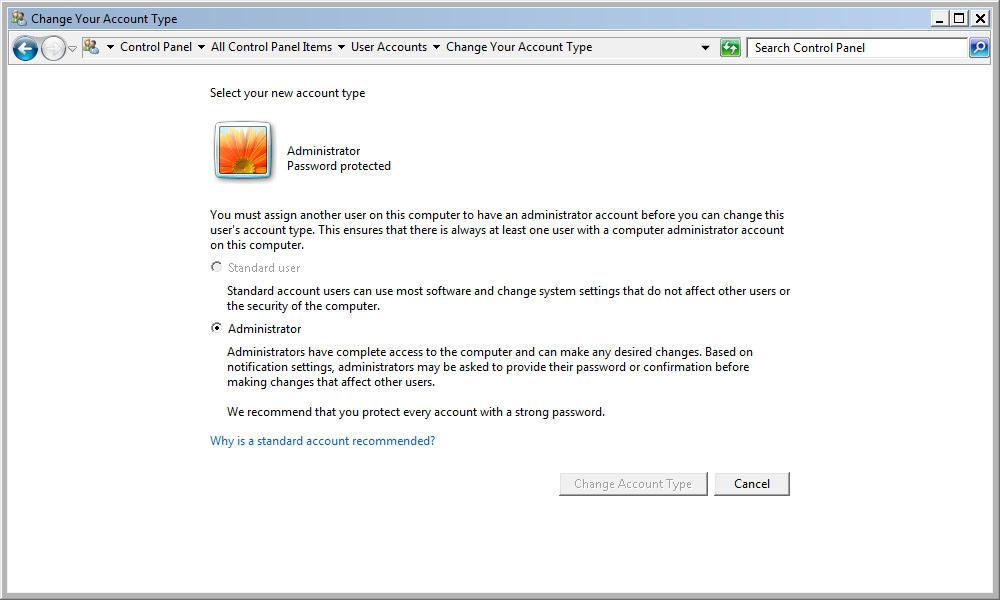
Changing Your Account Type
By changing your account type to administrator, you will be able to have complete access to your computer. Here’s how to do it. Go to your Control Panel, then click on User Accounts. Look for the option that says “Change your account type”, then click on it to access it. You will see two options, Standard User and Administrator. Select Administrator.
Change User Account Control Settings
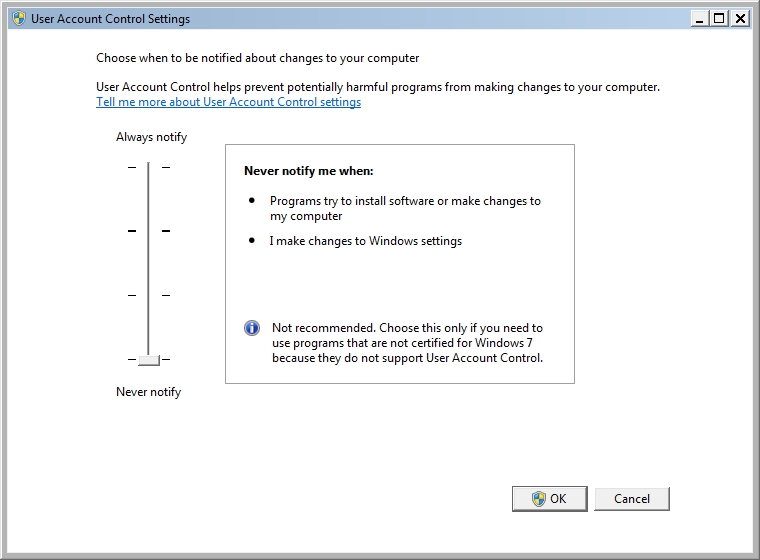
Changing these settings will stop all of those pesky alerts when try to make changes to your computer. If you hate being notified of every little change you make to your computer, than this option will make your computing life easier. To make this change, Go to your Control Panel, click on User Accounts. Look for the option that says “Change User Account Control settings”, click on that. You will see a slider with four options to choose from. Slide the option from the top all the way to the bottom.
Disabling User Account Control
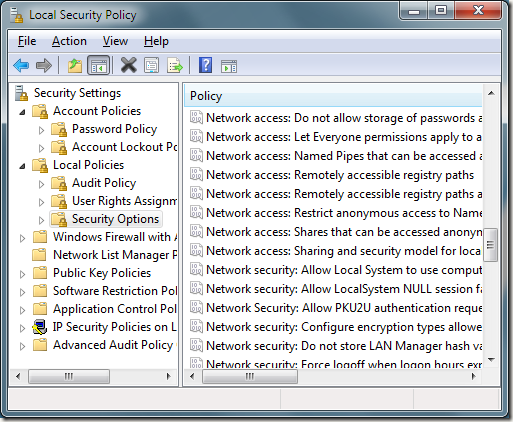
If the previous two options fail, then this one may assist you in your troubles. You want to go to your Control Panel. Click on Administrative Tools, then go to Local Security Policies. On the left navigation, look for Local Policies, expand that then click on Security Options. On the right side, scroll all the way down till you see a list of User Account Control options. Select the one that says “Detect application installations…”. Right click on that and select “Disable”.
Taking Ownership
If this option doesn’t work for you then you are simply doing something wrong lol. Simply select the folder that has been giving trouble when trying to modify or add files too (Program Files, System 32, etc.) right click the folder, goto properties, then click on the Security Tab. At the bottom right, look for the tab called “Advanced”, click on that. At the top of the window, click on the Owner tab.

Towards the bottom of the window, click on Edit tab. In the Change owner to box, select your Username then click Apply, then ok. Click ok again to go back to your Security tab. On the Group or user names field, click on the Edit tab. Select your computer Username then click on the Allow box that says “Full control”. Click Apply, then ok.
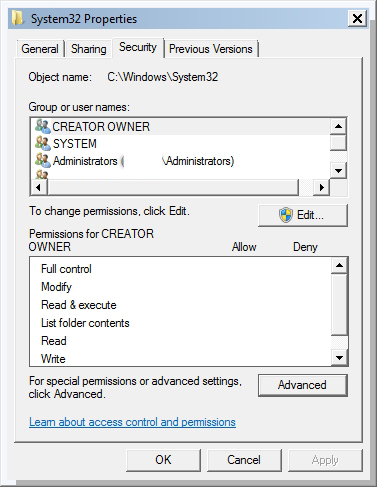
You will see a prompt telling you to apply changes to all files. Click ok once or twice, then hit cancel. Now you have become the effective owner of that folder and won’t be bothered with anymore prompts when making your necessary modifications.
I hope this guide has been a great help to you. Thank you for reading.
2 Comments
Pingback: Rasim Sib
Good tutorial, thanks!