• Home
  • Tips, Guides, & Troubleshooting
  • Categories
    • Software & Apps
    • Laptop Computers
    • Desktop Computers
    • Mobile Devices
    • Computer Monitors
    • Graphic Cards
    • Consoles
    • WiFi Devices
  • Product Reviews
  • Download Drivers
    • HP Drivers
    • Dell Drivers
    • Asus Drivers
    • Toshiba Drivers
Facebook Twitter Instagram
Trending
  • Linksys AE6000 WiFi Mini USB Adapter Review
  • How To Fix VCRUNTIME140.dll and MSVCP140.dll missing error in Windows 10
  • Netgear Nighthawk AC1900 WiFi USB Adapter Review
  • How To Fix Microsoft Excel Has Stopped Working Error
  • How To Increase Maximum Upload Limit & PHP Memory in WordPress
  • How To Fix Fonts Are Incomplete Error in Adobe InDesign
  • How To Connect To WiFi With An Android Phone
  • How To Setup Your TP-Link N300 TL-WA855RE WiFi Extender
Facebook Twitter Instagram
New Computer Inquiry
  • Home
  • Tips, Guides, & Troubleshooting
  • Categories
    • Software & Apps
    • Laptop Computers
    • Desktop Computers
    • Mobile Devices
    • Computer Monitors
    • Graphic Cards
    • Consoles
    • WiFi Devices
  • Product Reviews
  • Download Drivers
    • HP Drivers
    • Dell Drivers
    • Asus Drivers
    • Toshiba Drivers
New Computer Inquiry
You are at:Home»Tips & Guides»Converting USB Flash Drive from Fat32 to NTFS File System
Tips & Guides

Converting USB Flash Drive from Fat32 to NTFS File System

AndyBy AndyJanuary 2, 2016Updated:January 2, 2016No Comments2 Mins Read
Converting Fat32 to NTFS
  • Share
  • Tweet
  • LinkedIn
  • Email

You acquired a USB Flash Drive or an external hard-drive and want to place large files on it, only to find out that the device will not let you. The reason for this is because your removable media device is formatted as a Fat32 file system. In order for you to have the ability to add files over 2GB or more onto your removable media, the device first must be formatted to the NTFS file system.

Formatting your Removable Media Device to a NTFS file system.

Below are the steps to follow to activate NTFS for your USB Flash Drive or External Hard-Drive (Removable Media Device):

  1. Locate My Computer or Computer on your desktop or start menu
  2. Right click with your mouse and then select Manage. (On Windows 7 select Properties)
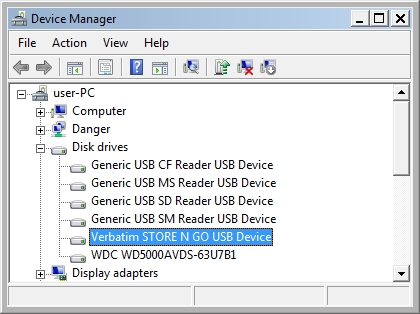
  3. Select Device Manager and then locate your Removable Media Device, typically located under Disk Drives.
  4.  
    Device Manager Win7

  5. After you have located your device, right click it then select Properties.
  6. Click on the 2nd tab called Policies and select the option called “Optimize for performance” (Windows 7 select Better Performance).
  7.  
    Optimize for Performance USB Drive

  8. Click OK to apply the changes.
  9. Close all your windows and open My Computer or Computer
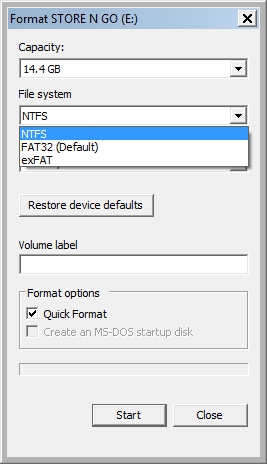
  10. Locate your removable media device, right click and select Format
  11.  
    Fat32 to NTFS

  12. Where it says “File System” select NTFS
  13. Click start to begin the conversion.
All done.

Fat32 Fat32 to NTFS NTFS NTFS File System Removalable Media USB Flash Drive
Share. Facebook Twitter Pinterest LinkedIn Tumblr Email

Related Posts

How To Fix VCRUNTIME140.dll and MSVCP140.dll missing error in Windows 10

How To Fix Microsoft Excel Has Stopped Working Error

How To Increase Maximum Upload Limit & PHP Memory in WordPress

Leave A Reply Cancel Reply

  • Recent Posts
  • Top Reviews
9.0
December 25, 2021

Linksys AE6000 WiFi Mini USB Adapter Review

December 21, 2021

How To Fix VCRUNTIME140.dll and MSVCP140.dll missing error in Windows 10

8.5
December 21, 2021

Netgear Nighthawk AC1900 WiFi USB Adapter Review

February 5, 2021

How To Fix Microsoft Excel Has Stopped Working Error

9.9
September 18, 2014

HP Envy 24 24-Inch Screen LED-Lit Monitor With Beats Audio Review

9.9
September 18, 2014

Samsung Galaxy Tab 4 Review

9.9
December 25, 2014

CybertronPC Hellion GM1213B Desktop Review

9.8
September 16, 2014

Dell Inspiron 17R Touchscreen Gaming Laptop 2014 Edition PC Review

9.0
December 25, 2021

Linksys AE6000 WiFi Mini USB Adapter Review

December 21, 2021

How To Fix VCRUNTIME140.dll and MSVCP140.dll missing error in Windows 10

8.5
December 21, 2021

Netgear Nighthawk AC1900 WiFi USB Adapter Review

February 5, 2021

How To Fix Microsoft Excel Has Stopped Working Error

About

New Computer Inquiry was created to provide great reviews and tips that are computer or technology related. We value providing quality information that people can learn and benefit from.

Our staff are all computer experts with professional experience when it comes to Mac and PC based computers, as well as smart phones and video game consoles. Thank you for visiting our website and we look forward to serving you the best content!

Popular Posts
November 23, 2016

How To Setup Your Toyia MSRM US302 300Mbps Wi-Fi Range Extender

July 3, 2017

How To Setup Your NETGEAR Nighthawk AC1750 Smart Dual Band WiFi Router

February 9, 2015

Attaching PDF To Outlook Gets Corrupted Solution

Recent Posts
9.0
December 25, 2021

Linksys AE6000 WiFi Mini USB Adapter Review

December 21, 2021

How To Fix VCRUNTIME140.dll and MSVCP140.dll missing error in Windows 10

8.5
December 21, 2021

Netgear Nighthawk AC1900 WiFi USB Adapter Review

Copyright © 2024 New Computer Inquiry

Type above and press Enter to search. Press Esc to cancel.